" height="18.016311920580208px" id="GKXyVanMq" stroke-dasharray="0" stroke-linecap="butt" stroke-linejoin="miter" stroke-miterlimit="10" stroke-width="0.5" stroke="rgb(0, 0, 0)" transform="translate(3 3)" width="18px"/></svg>)
"/><stop offset="1" stop-color="rgb(227, 224, 244)"/></linearGradient><linearGradient id="CBS1bzkxF-2031533640-linear-gradient" x1="0.49751243781094523" x2="0.5024875621890548" y1="0" y2="1"><stop offset="0" stop-color="rgb(255, 255, 255)"/><stop offset="1" stop-color="rgb(227, 224, 244)"/></linearGradient><linearGradient id="Jd7AK81w9-2031533640-linear-gradient" x1="0.49751243781094523" x2="0.5024875621890548" y1="0" y2="1"><stop offset="0" stop-color="rgb(255, 255, 255)"/><stop offset="1" stop-color="rgb(227, 224, 244)"/></linearGradient></defs><g d="M 0 16 L 0 0 L 16 0 L 16 16 Z M 9.167 5.167 C 9.167 4.891 8.943 4.667 8.667 4.667 C 8.391 4.667 8.167 4.891 8.167 5.167 C 8.167 6.784 7.809 7.834 7.155 8.488 C 6.501 9.143 5.451 9.5 3.833 9.5 C 3.557 9.5 3.333 9.724 3.333 10 C 3.333 10.276 3.557 10.5 3.833 10.5 C 5.451 10.5 6.501 10.857 7.155 11.512 C 7.809 12.166 8.167 13.216 8.167 14.833 C 8.167 15.109 8.391 15.333 8.667 15.333 C 8.943 15.333 9.167 15.109 9.167 14.833 C 9.167 13.216 9.524 12.166 10.178 11.512 C 10.832 10.857 11.883 10.5 13.5 10.5 C 13.776 10.5 14 10.276 14 10 C 14 9.724 13.776 9.5 13.5 9.5 C 11.883 9.5 10.832 9.143 10.178 8.488 C 9.524 7.834 9.167 6.784 9.167 5.167 Z M 4 3.667 C 4 3.483 3.851 3.333 3.667 3.333 C 3.483 3.333 3.333 3.483 3.333 3.667 C 3.333 4.32 3.189 4.715 2.952 4.952 C 2.715 5.189 2.32 5.333 1.667 5.333 C 1.483 5.333 1.333 5.483 1.333 5.667 C 1.333 5.851 1.483 6 1.667 6 C 2.32 6 2.715 6.145 2.952 6.382 C 3.189 6.618 3.333 7.013 3.333 7.667 C 3.333 7.851 3.483 8 3.667 8 C 3.851 8 4 7.851 4 7.667 C 4 7.013 4.145 6.618 4.382 6.382 C 4.618 6.145 5.013 6 5.667 6 C 5.851 6 6 5.851 6 5.667 C 6 5.483 5.851 5.333 5.667 5.333 C 5.013 5.333 4.618 5.189 4.382 4.952 C 4.145 4.715 4 4.32 4 3.667 Z M 7.333 1 C 7.333 0.816 7.184 0.667 7 0.667 C 6.816 0.667 6.667 0.816 6.667 1 C 6.667 1.422 6.573 1.65 6.445 1.778 C 6.317 1.906 6.089 2 5.667 2 C 5.483 2 5.333 2.149 5.333 2.333 C 5.333 2.517 5.483 2.667 5.667 2.667 C 6.089 2.667 6.317 2.761 6.445 2.889 C 6.573 3.016 6.667 3.244 6.667 3.667 C 6.667 3.851 6.816 4 7 4 C 7.184 4 7.333 3.851 7.333 3.667 C 7.333 3.244 7.427 3.016 7.555 2.889 C 7.683 2.761 7.911 2.667 8.333 2.667 C 8.517 2.667 8.667 2.517 8.667 2.333 C 8.667 2.149 8.517 2 8.333 2 C 7.911 2 7.683 1.906 7.555 1.778 C 7.427 1.65 7.333 1.422 7.333 1 Z" fill="transparent" height="16px" id="aoZYv33vR" width="16px"><path d="M 0 16 L 0 0 L 16 0 L 16 16 Z" fill="transparent" height="16px" id="Z2uGmhW9f" width="16px"/><g d="M 7.833 4.5 C 7.833 4.224 7.609 4 7.333 4 C 7.057 4 6.833 4.224 6.833 4.5 C 6.833 6.117 6.476 7.168 5.822 7.822 C 5.168 8.476 4.117 8.833 2.5 8.833 C 2.224 8.833 2 9.057 2 9.333 C 2 9.61 2.224 9.833 2.5 9.833 C 4.117 9.833 5.168 10.191 5.822 10.845 C 6.476 11.499 6.833 12.549 6.833 14.167 C 6.833 14.443 7.057 14.667 7.333 14.667 C 7.609 14.667 7.833 14.443 7.833 14.167 C 7.833 12.549 8.191 11.499 8.845 10.845 C 9.499 10.191 10.549 9.833 12.167 9.833 C 12.443 9.833 12.667 9.61 12.667 9.333 C 12.667 9.057 12.443 8.833 12.167 8.833 C 10.549 8.833 9.499 8.476 8.845 7.822 C 8.191 7.168 7.833 6.117 7.833 4.5 Z M 2.667 3 C 2.667 2.816 2.517 2.667 2.333 2.667 C 2.149 2.667 2 2.816 2 3 C 2 3.654 1.855 4.048 1.618 4.285 C 1.382 4.522 0.987 4.667 0.333 4.667 C 0.149 4.667 0 4.816 0 5 C 0 5.184 0.149 5.333 0.333 5.333 C 0.987 5.333 1.382 5.478 1.618 5.715 C 1.855 5.952 2 6.346 2 7 C 2 7.184 2.149 7.333 2.333 7.333 C 2.517 7.333 2.667 7.184 2.667 7 C 2.667 6.346 2.811 5.952 3.048 5.715 C 3.285 5.478 3.68 5.333 4.333 5.333 C 4.517 5.333 4.667 5.184 4.667 5 C 4.667 4.816 4.517 4.667 4.333 4.667 C 3.68 4.667 3.285 4.522 3.048 4.285 C 2.811 4.048 2.667 3.654 2.667 3 Z M 6 0.333 C 6 0.149 5.851 0 5.667 0 C 5.483 0 5.333 0.149 5.333 0.333 C 5.333 0.756 5.239 0.984 5.112 1.112 C 4.984 1.239 4.756 1.333 4.333 1.333 C 4.149 1.333 4 1.483 4 1.667 C 4 1.851 4.149 2 4.333 2 C 4.756 2 4.984 2.094 5.112 2.222 C 5.239 2.35 5.333 2.578 5.333 3 C 5.333 3.184 5.483 3.333 5.667 3.333 C 5.851 3.333 6 3.184 6 3 C 6 2.578 6.094 2.35 6.222 2.222 C 6.35 2.094 6.578 2 7 2 C 7.184 2 7.333 1.851 7.333 1.667 C 7.333 1.483 7.184 1.333 7 1.333 C 6.578 1.333 6.35 1.239 6.222 1.112 C 6.094 0.984 6 0.756 6 0.333 Z" fill="transparent" height="14.66671286102295px" id="ae6ccdFme" transform="translate(1.333 0.667)" width="12.66663px"><path d="M 5.833 0.5 C 5.833 0.224 5.609 0 5.333 0 C 5.057 0 4.833 0.224 4.833 0.5 C 4.833 2.117 4.476 3.168 3.822 3.822 C 3.168 4.476 2.117 4.833 0.5 4.833 C 0.224 4.833 0 5.057 0 5.333 C 0 5.61 0.224 5.833 0.5 5.833 C 2.117 5.833 3.168 6.191 3.822 6.845 C 4.476 7.499 4.833 8.549 4.833 10.167 C 4.833 10.443 5.057 10.667 5.333 10.667 C 5.609 10.667 5.833 10.443 5.833 10.167 C 5.833 8.549 6.191 7.499 6.845 6.845 C 7.499 6.191 8.549 5.833 10.167 5.833 C 10.443 5.833 10.667 5.61 10.667 5.333 C 10.667 5.057 10.443 4.833 10.167 4.833 C 8.549 4.833 7.499 4.476 6.845 3.822 C 6.191 3.168 5.833 2.117 5.833 0.5 Z" fill="url(%23t2lXByE48-2031533640-linear-gradient)" height="10.66671px" id="t2lXByE48" transform="translate(2 4)" width="10.66663px"/><path d="M 2.667 0.333 C 2.667 0.149 2.517 0 2.333 0 C 2.149 0 2 0.149 2 0.333 C 2 0.987 1.855 1.382 1.618 1.618 C 1.382 1.855 0.987 2 0.333 2 C 0.149 2 0 2.149 0 2.333 C 0 2.517 0.149 2.667 0.333 2.667 C 0.987 2.667 1.382 2.811 1.618 3.048 C 1.855 3.285 2 3.68 2 4.333 C 2 4.517 2.149 4.667 2.333 4.667 C 2.517 4.667 2.667 4.517 2.667 4.333 C 2.667 3.68 2.811 3.285 3.048 3.048 C 3.285 2.811 3.68 2.667 4.333 2.667 C 4.517 2.667 4.667 2.517 4.667 2.333 C 4.667 2.149 4.517 2 4.333 2 C 3.68 2 3.285 1.855 3.048 1.618 C 2.811 1.382 2.667 0.987 2.667 0.333 Z" fill="url(%23CBS1bzkxF-2031533640-linear-gradient)" height="4.66667px" id="CBS1bzkxF" transform="translate(0 2.667)" width="4.66667px"/><path d="M 2 0.333 C 2 0.149 1.851 0 1.667 0 C 1.483 0 1.333 0.149 1.333 0.333 C 1.333 0.756 1.239 0.984 1.112 1.112 C 0.984 1.239 0.756 1.333 0.333 1.333 C 0.149 1.333 0 1.483 0 1.667 C 0 1.851 0.149 2 0.333 2 C 0.756 2 0.984 2.094 1.112 2.222 C 1.239 2.35 1.333 2.578 1.333 3 C 1.333 3.184 1.483 3.333 1.667 3.333 C 1.851 3.333 2 3.184 2 3 C 2 2.578 2.094 2.35 2.222 2.222 C 2.35 2.094 2.578 2 3 2 C 3.184 2 3.333 1.851 3.333 1.667 C 3.333 1.483 3.184 1.333 3 1.333 C 2.578 1.333 2.35 1.239 2.222 1.112 C 2.094 0.984 2 0.756 2 0.333 Z" fill="url(%23Jd7AK81w9-2031533640-linear-gradient)" height="3.333333px" id="Jd7AK81w9" transform="translate(4 0)" width="3.3333399999999997px"/></g></g></svg>)
" width="18px"><path d="M 2 8 C 0.895 8 0 7.105 0 6 L 0 2 C 0 0.895 0.895 0 2 0 L 6 0 C 7.105 0 8 0.895 8 2 L 8 6 C 8 7.105 7.105 8 6 8 Z" fill="transparent" height="8px" id="ZrCrI93dV" stroke-dasharray="" stroke-linecap="round" stroke-linejoin="round" stroke-width="2" stroke="rgb(0, 0, 0)" width="8px"/><path d="M 0 0 L 0 4 C 0 5.105 0.895 6 2 6 L 6 6" fill="transparent" height="6px" id="emltWYAiE" stroke-dasharray="" stroke-linecap="round" stroke-linejoin="round" stroke-width="2" stroke="rgb(0, 0, 0)" transform="translate(4 8)" width="6px"/><path d="M 2 8 C 0.895 8 0 7.105 0 6 L 0 2 C 0 0.895 0.895 0 2 0 L 6 0 C 7.105 0 8 0.895 8 2 L 8 6 C 8 7.105 7.105 8 6 8 Z" fill="transparent" height="8px" id="WpBecYDfi" stroke-dasharray="" stroke-linecap="round" stroke-linejoin="round" stroke-width="2" stroke="rgb(0, 0, 0)" transform="translate(10 10)" width="8px"/></g></svg>)

Google Calendar Tips: Simplify Scheduling & Boost Productivity [2026]
Master Google Calendar with these expert tips and tricks. Learn how to streamline scheduling, automate workflows, and boost productivity for teams and individuals.

Staying on top of your schedule is crucial. That’s where calendar apps like Google Calendar (and Cal.com) come into play. They seamlessly integrate into modern workflows, sync with other tools, and connect with a wide range of applications, so all your information is centralized.
In this article, we’ll show you the top Google Calendar tips for simplifying your scheduling.
Getting Started With Google Calendar
Google Calendar has over 700K users, making it one of the most popular calendar apps. While it’s basic compared to advanced scheduling tools like Cal.com, it has a few scheduling and productivity tricks up its sleeve. Before we dive into those, let’s quickly look at how to set ii up correctly.
Setting Up a Google Account
Setting up an account is the first step in leveraging Google Calendar features. If you already have a Google account for Gmail or any other Google service, you can access Google Calendar through your existing account.
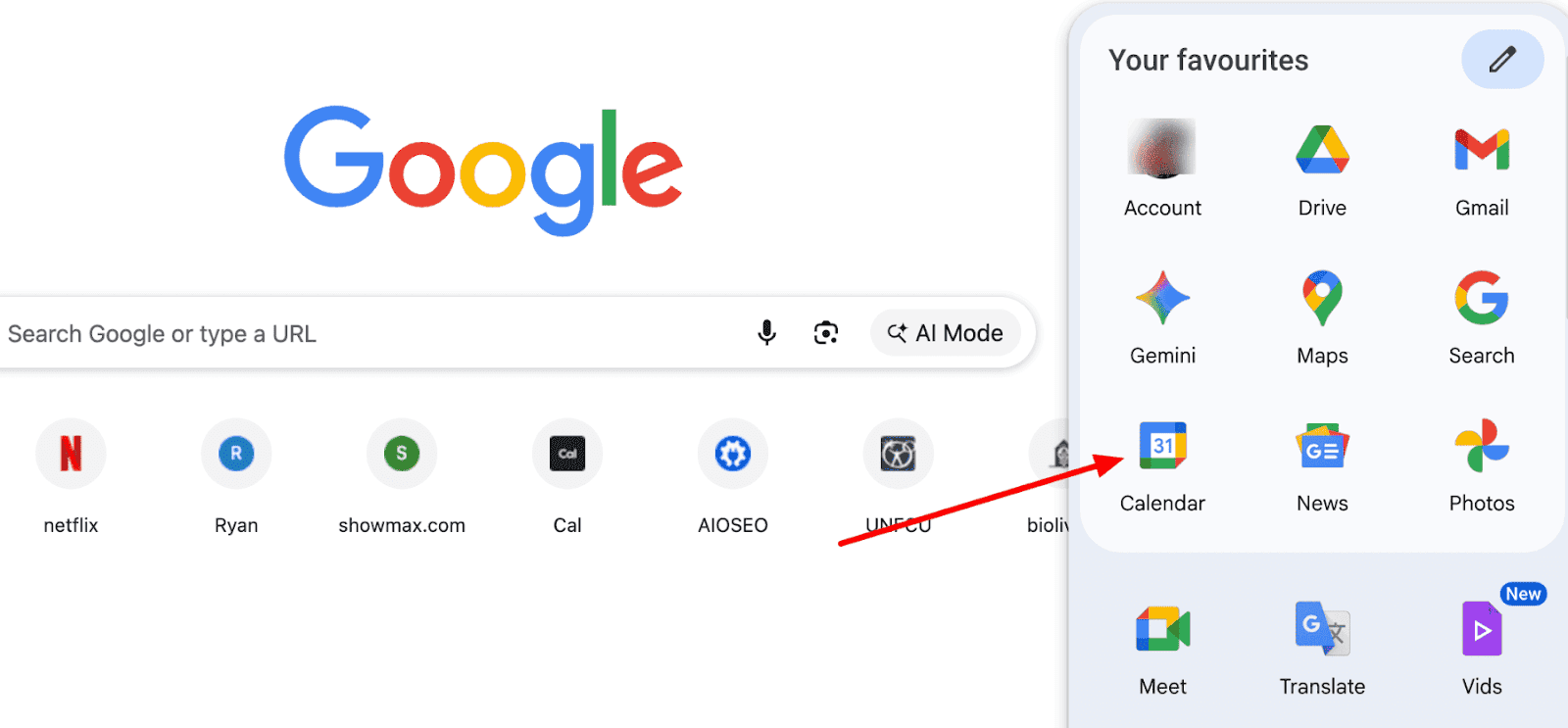
For new users, sign up on the Google homepage by clicking the 'Sign In' section and then 'Create an account.' Follow the on-screen instructions to create a new Google account, automatically giving you access to the Google Calendar app and all its scheduling capabilities. This straightforward setup opens up a comprehensive suite of tools for managing your personal and professional schedules.
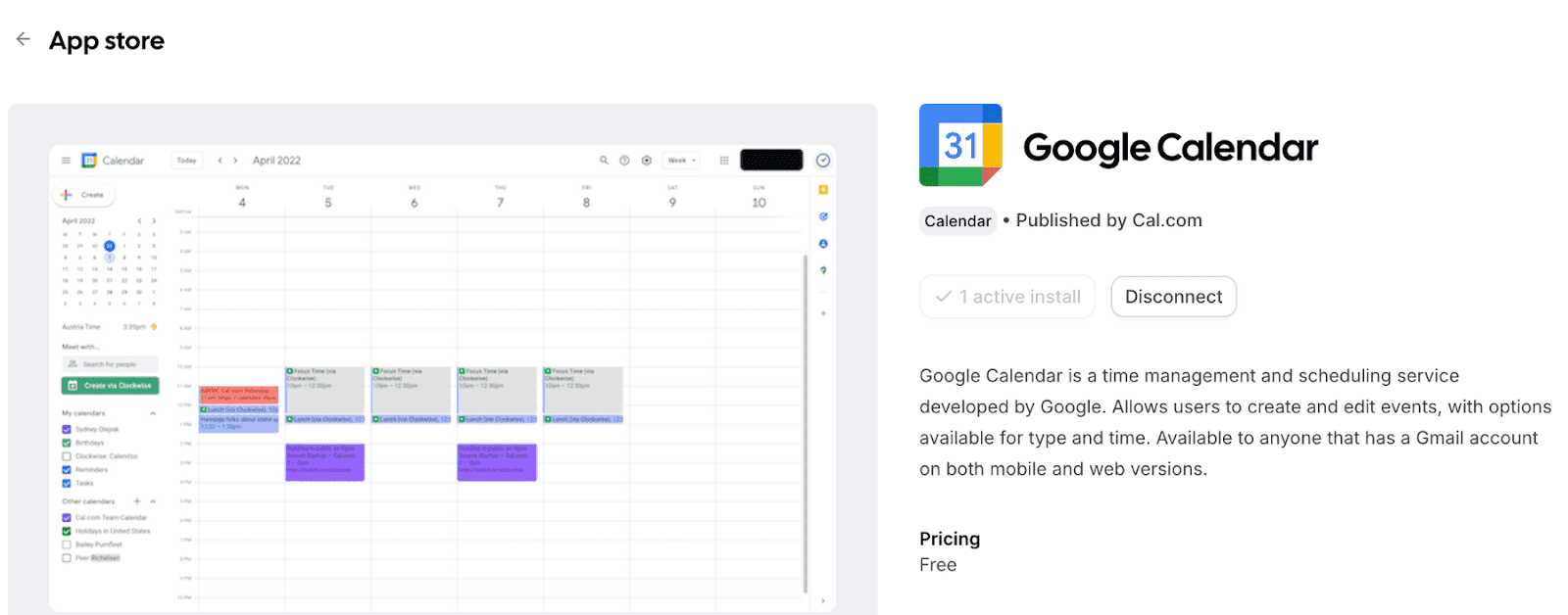
Alternatively, you can download the Google Calendar app from the Cal App store.
Creating and Customizing Events
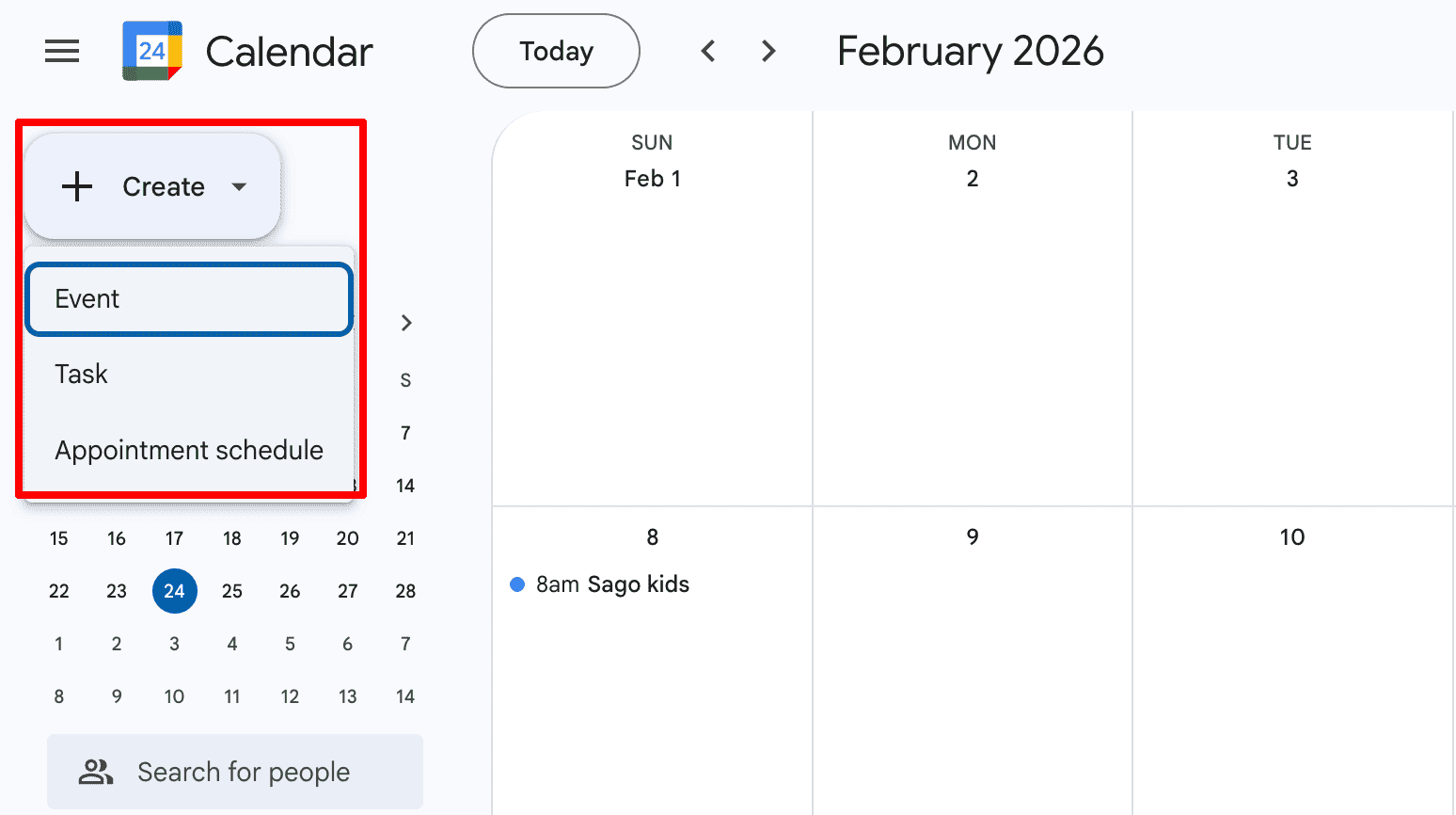
Creating events in Google Calendar is easy. Simply click the “Create” button and select “Event”.
A dialog box will appear where you can input details such as the event title, location, and time. You can add descriptions and attachments to provide more detailed scheduling and ensure attendees have all the necessary information.
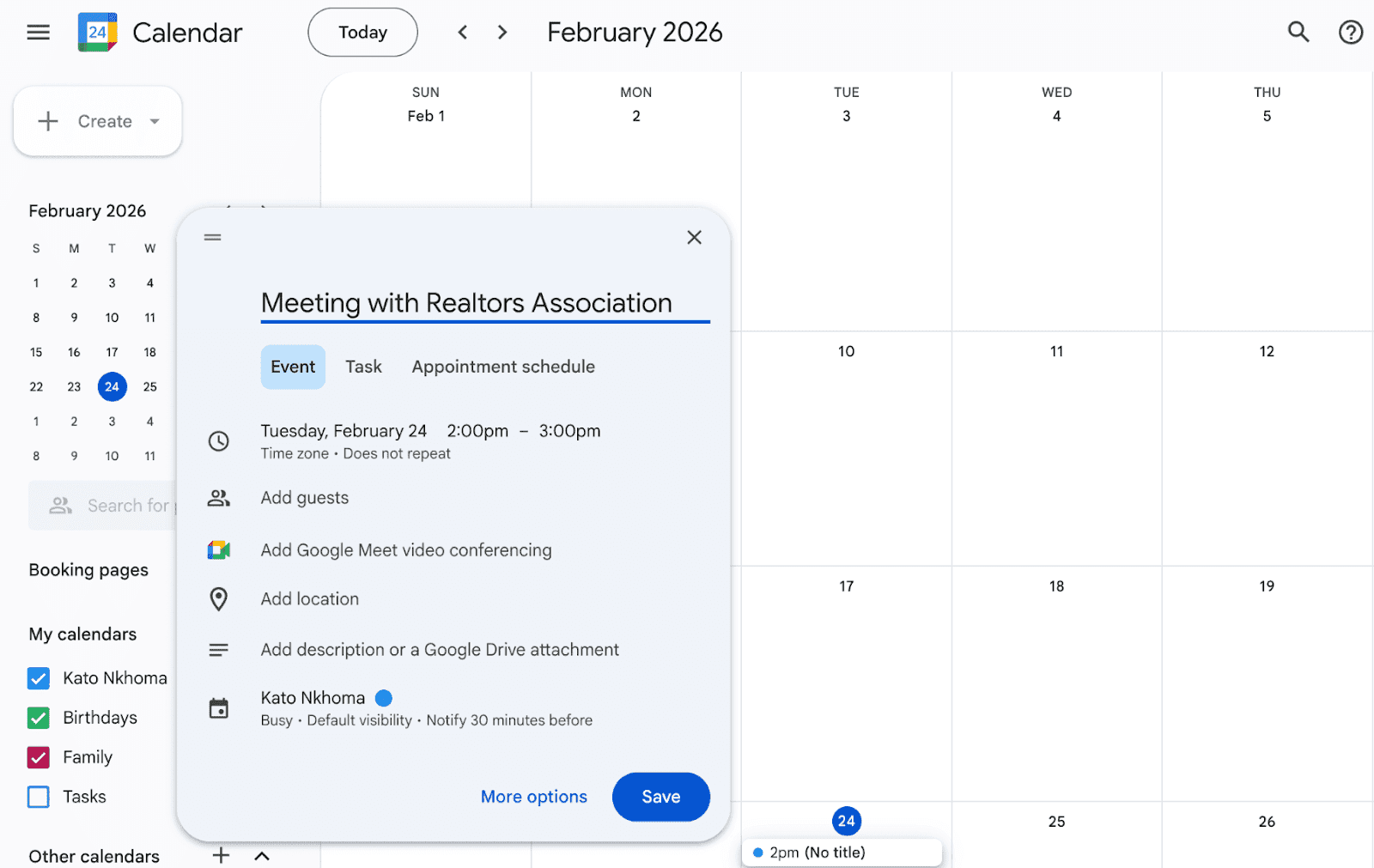
Customizing event visibility and color-coding helps organize different types of activities at a glance, enhancing the Google Schedule Maker to suit your personal or professional needs.
Google Calendar also allows you to add guests to any event by entering their email addresses in the event creation or editing window's 'Add guests' section.
Once added, guests receive an invitation email that allows them to RSVP. You can track who has accepted or declined the invite directly from the event page. This feature integrates seamlessly with Gmail, allowing you to manage invitations and communications efficiently.
Using Recurring Events for Regular Meetings
When creating an event, you can choose the 'Does not repeat' dropdown to set it to recur daily, weekly, monthly, or even annually. This is particularly useful for scheduling regular team meetings, appointments, and reminders without the hassle of entering them manually each time.
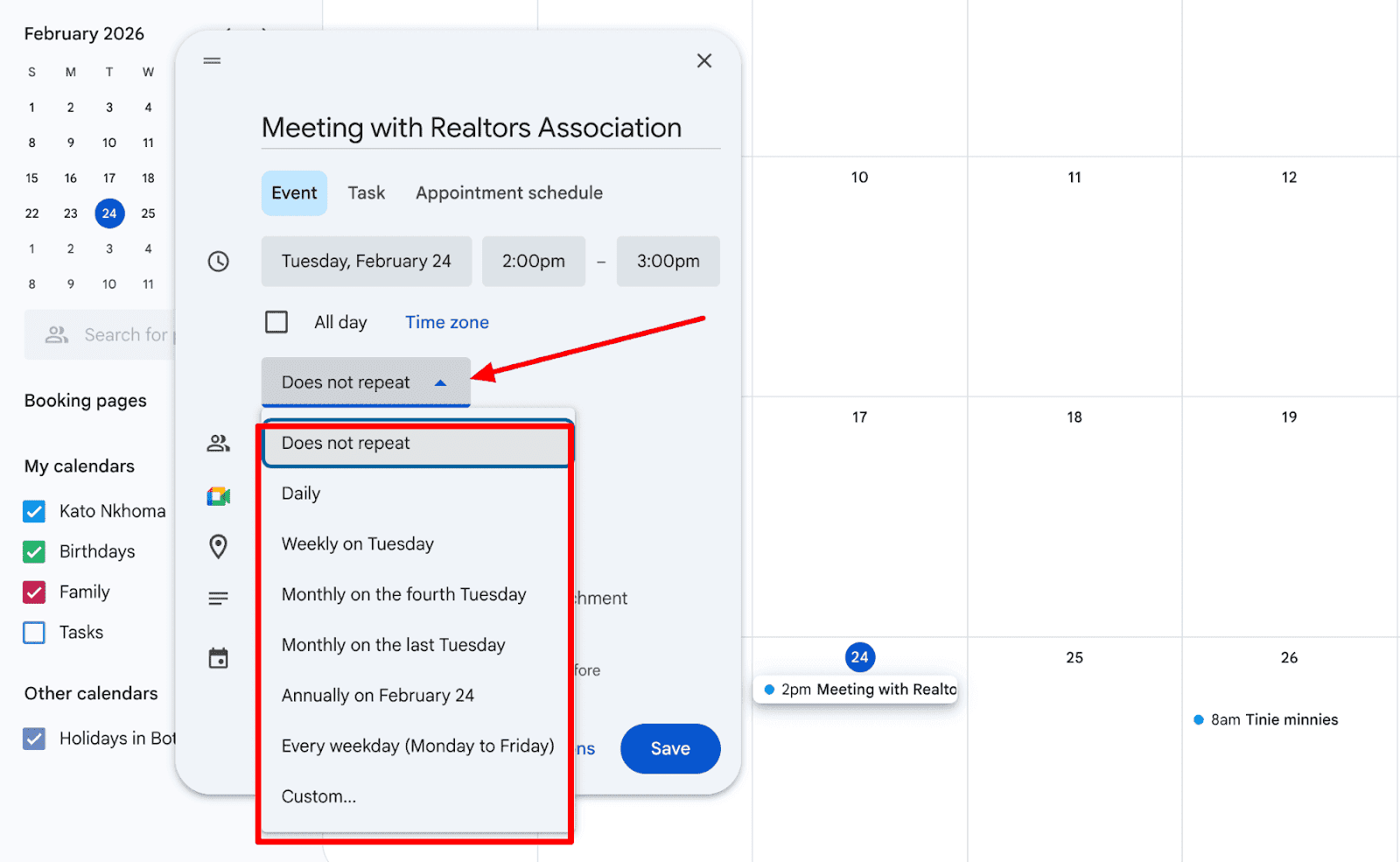
It ensures you never miss regular commitments by automating their occurrence in your calendar. This makes Google's scheduling tool indispensable for ongoing project management and personal routines. You can set up reminders and customize notifications to ensure you don’t miss important deadlines and events.
Syncing With Gmail, Google Meet, and Contacts
Syncing Google Calendar with other tools like Gmail, Google Meet, and your Google Contacts enhances its functionality. Events from emails, such as flight bookings or hotel reservations, can automatically sync to your calendar.
Also, when you set up meetings or appointments, Google Calendar can automatically generate a Google Meet link, making it easy to join virtual meetings. Syncing contacts allows you to add people to events quickly. This connectivity ensures that your scheduling is seamless and all pertinent information is readily accessible, epitomizing effective online scheduling with Google Calendar.
Keyboard Shortcuts and Efficiency Tips
Keyboard shortcuts and quick navigation features in Google Calendar are powerful tools for streamlining your workflow and saving valuable time. Instead of relying on multiple clicks, you can swiftly perform common actions with simple key combinations. For example, pressing “C” instantly opens the event creation dialog, while “T” jumps you to today’s date.
Navigating between calendar views is also effortless—use “1” for day view, “2” for week view, and “3” for month view.
Shortcuts like “Q” for quick add, “/” for search, and “S” for settings help you manage your schedule with minimal interruption.
By mastering these shortcuts, you can efficiently organize, review, and adjust your calendar, making daily scheduling faster and more intuitive.
Essential Features for Simplifying Scheduling
Using Google Appointment Scheduling Tools
This functionality lets you share your availability with colleagues or clients, so they can book times that work for both of you without the back-and-forth typically involved in scheduling. This is particularly useful for professionals such as consultants, therapists, or salespeople who need to manage external interactions efficiently. By setting predefined availability slots, you ensure that you're never double-booked and that all parties can choose optimal meeting times.
Setting Up Time Slots for Bookings
To use this Google scheduling feature, select the option to create appointment slots from your calendar view, specify the slot duration, and share the booking link with others.
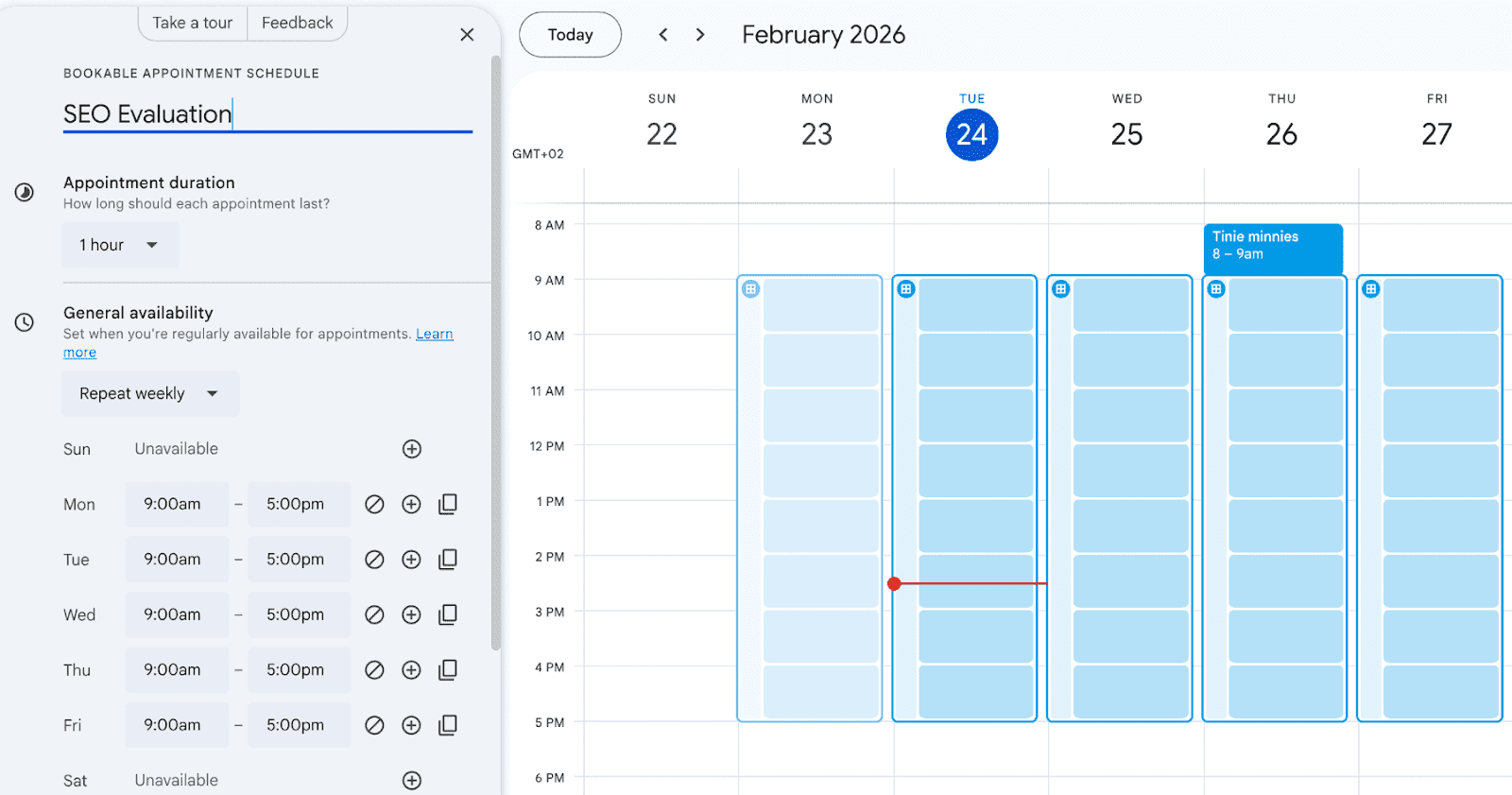
This method not only streamlines appointment booking but also provides a clear overview of your available times, reducing the likelihood of scheduling conflicts and optimizing your daily workflow.
Managing Shared Calendars
For teams and collaborative projects, managing shared calendars is essential. Google Calendar allows you to create multiple calendars that you can share with different groups or individuals. Each participant can view, add, or edit events depending on the permissions you assign. An essential component of efficient team management is coordinating schedules and ensuring everyone is aware of group and individual events.
Leveraging Google Calendar’s “Suggested Times” Feature
When scheduling a meeting in Google Calendar, you can view guests’ availability directly within the event editor, as long as they’ve shared their calendar with you (even just free/busy access).
After adding attendees, Google Calendar automatically displays Suggested Times, highlighting time slots when everyone is available. This eliminates the back-and-forth of manually checking schedules and makes it much easier to find a time that works for the whole group.
If a guest hasn’t shared their calendar or only has limited visibility settings, their availability won’t appear. But once permissions are in place, the feature streamlines planning and significantly speeds up scheduling.
Color-Coding Events for Visual Organization
Color-coding in Google Calendar is one of the simplest ways to make your schedule instantly easier to understand. With a quick glance, you can see what your day looks like without reading every event title.
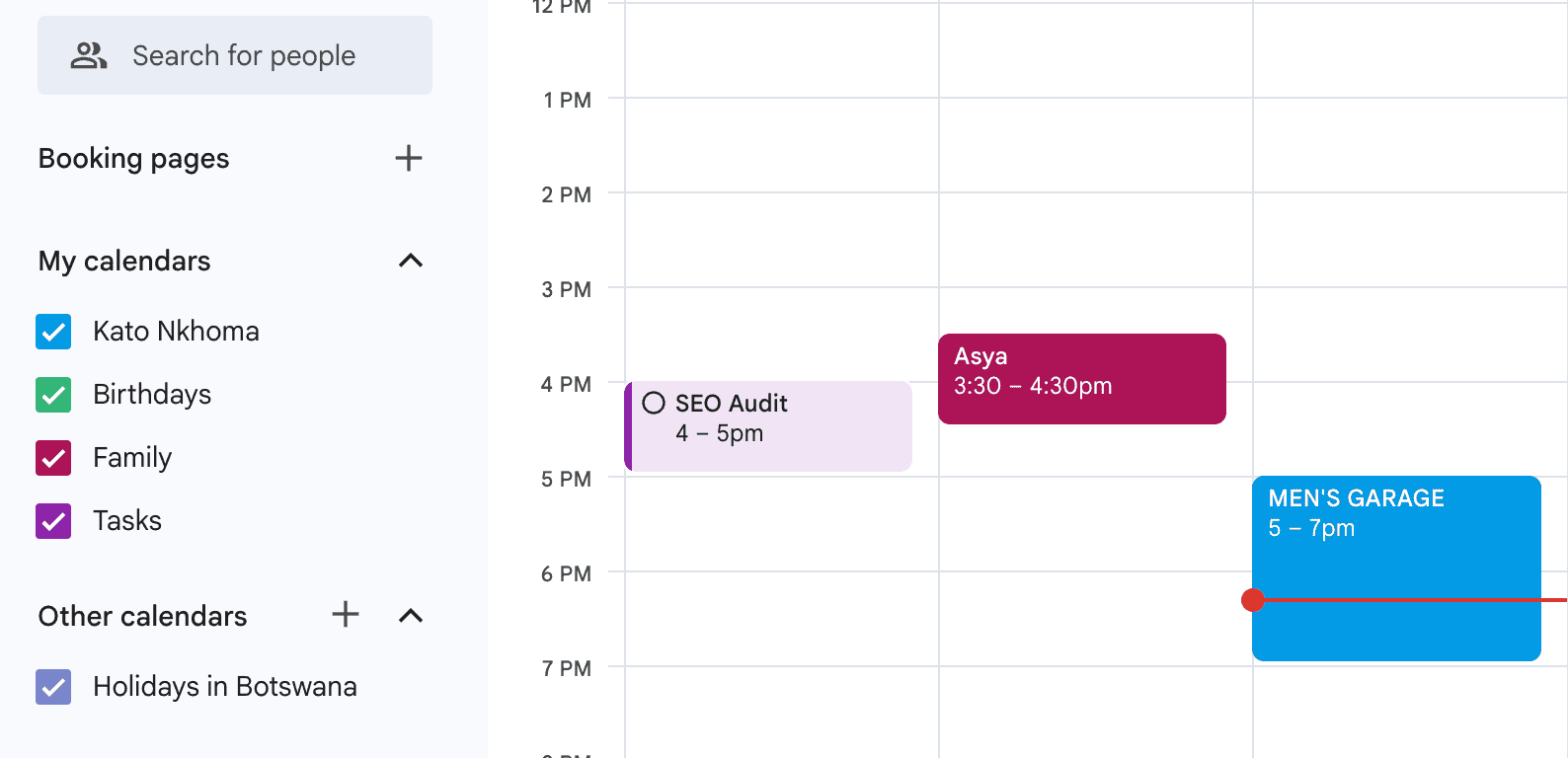
Here’s how to use it effectively:
Categorize your commitments: Assign different colors to areas of your life, like blue for personal and green for work. You can color individual events or use separate calendars with default colors to quickly organize them visually.
Prioritize what matters: Use bold or bright colors for high-priority tasks and softer tones for flexible activities. This visual hierarchy helps you focus on what needs attention first and prevents key deadlines from getting lost.
Maintain Balance: The distribution of colors on your calendar reveals how you’re spending your time. If one color dominates, it may signal the need to rebalance your commitments.
Highlight the Unusual: Use a standout color for special events or one-time commitments. This makes them easy to spot and reduces the risk of overlooking something important.
By intentionally categorizing and prioritizing events, you turn your calendar into more than a schedule. It becomes a visual management system that supports clarity, focus, and better time decisions.
Advanced Features and Productivity Hacks
Google Calendar offers far more than simple event scheduling. With built-in productivity tools like Focus Time, Out of Office, time zone management, attachments, and daily agenda emails, you can turn your calendar into a complete time management system.
Use Focus Time and Out of Office to Protect Your Schedule
The Focus Time event type lets you block deep work sessions and automatically decline meeting requests during that window (available on eligible Google Workspace plans).
The Out of Office feature can automatically decline new invites and send a custom response, helping you manage availability without manual follow-ups.
Time Blocking in Google Calendar
Time blocking improves productivity by assigning dedicated time slots to specific tasks or work categories. Instead of reacting to your day, you proactively structure it.
Create manual time blocks or use Focus Time to reduce interruptions and protect priority work. This method is especially effective for busy professionals managing multiple responsibilities.
How to Create Multi-Day Events
To schedule conferences, travel, or project timelines, simply select a start and end date when creating an event. Google Calendar automatically blocks all included days.
Multi-day events improve team visibility and prevent overlapping commitments during long-running activities.
Time Management Tools Inside Google Calendar
Google Calendar includes several features designed to improve scheduling efficiency:
Working Hours: Set availability to prevent meetings outside your preferred times.
Recurring Events: Automate regular meetings or tasks.
Reminders and Notifications: Stay on track with customizable alerts.
Buffer Time: Add space between meetings to prevent burnout.
These tools help reduce scheduling conflicts and improve overall time management.
Scheduling Meetings Across Time Zones
Google Calendar makes international scheduling simple with built-in time zone tools:
Default Time Zone Settings keep your calendar anchored to your primary location.
Automatic Guest Time Adjustments display meeting times in each participant’s local time.
Time Zone Picker allows side-by-side comparison when creating events.
The World Clock shows the current time in selected global cities.
These features eliminate confusion, reduce back-and-forth communication, and streamline global collaboration.
Optimizing Notifications and Alerts in Google Calendar
Google Calendar offers flexible notification settings to help you stay on schedule without being overwhelmed.
Email and Push Notifications
You can receive reminders via email or mobile push notifications, with customizable timing for each calendar and event. Default alerts can be set at the calendar level, and individual events can override those settings.
On mobile, notifications update in real time, allowing you to respond to invites or adjust events directly from the app.
Adding Travel Time and “Time to Leave” Alerts
If you add a location to an event, you can enable travel time to automatically block out commute time in your calendar. With mobile notifications and location services enabled, Google Calendar can send a “time to leave” alert based on current traffic conditions.
This feature works best when paired with Google Maps data and is especially helpful for back-to-back in-person meetings.
Using the Google Calendar API for Automation
The Google Calendar API allows developers to create, update, and manage events programmatically. Businesses use it to sync calendars with CRMs, booking systems, and internal tools, making it ideal for workflow automation and custom scheduling solutions.
Integrations That Extend Functionality
Google Calendar integrates seamlessly with other tools, centralizing your workflow.
Gmail Integration
Calendar and Gmail work together automatically. Event details from emails, such as flights or reservations, can be added to your calendar, and you can create events directly from your inbox.
Third-Party App Connections
Google Calendar connects with platforms like Slack, Zoom, Trello, and Asana — either natively or through automation tools. These integrations allow meeting scheduling, reminders, and task syncing across platforms.
Browser Extensions
Chrome extensions such as Checker Plus for Google Calendar add features like desktop notifications and quick event previews. While permissions are more regulated, extensions can still enhance usability for power users.
Cal.com: The Easier Way to Schedule Meetings and Manage Your Calendar
Google Calendar works well for tracking your schedule. But it doesn't handle the booking process. You still send emails back and forth, finding times that work for both of you. You manually send confirmations and reminders. You track RSVPs in your inbox.
This is where next-gen calendar scheduling apps like Cal.com come in.
Cal.com: Features, Pricing, Pros, and Cons
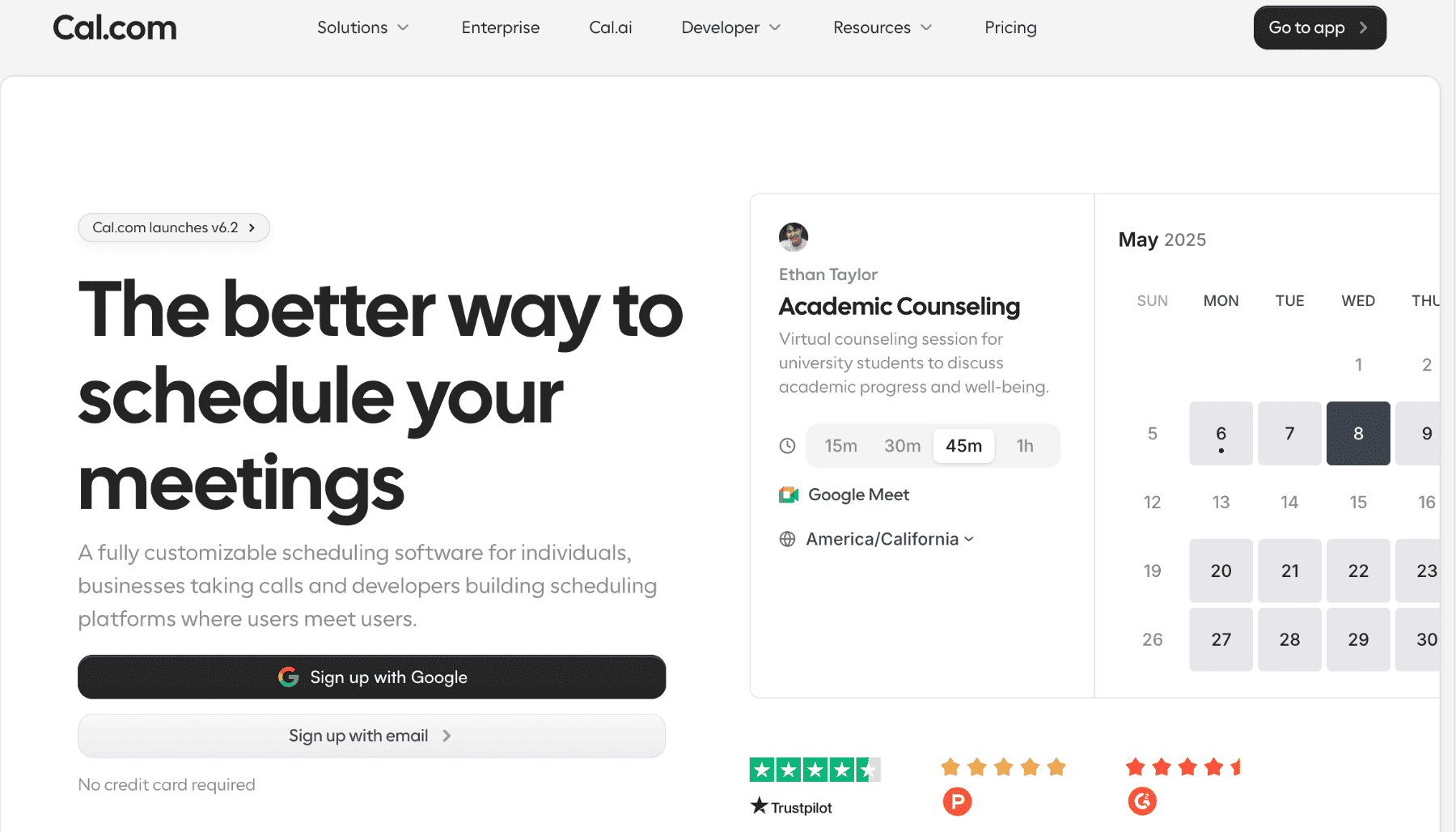
Cal.com is an appointment scheduling tool built for individuals, teams, and businesses that need powerful scheduling without compromise. It’s built for serious booking automation, especially for brands that rely on a smooth booking workflow to drive growth.
Setup is straightforward. Cal.com syncs with Google Calendar, Outlook, and iCloud. When you connect your calendar, your availability updates in real time. No need to recreate your availability from scratch.
Cal.com transforms your calendar from a passive schedule tracker into an active scheduling infrastructure. The platform automates everything Google Calendar can't.
Automation Google Calendar Doesn't Offer
Google Calendar shows your availability. Cal.com helps you automate the scheduling experience, including follow-ups. Setting up workflows is super easy and saves time.
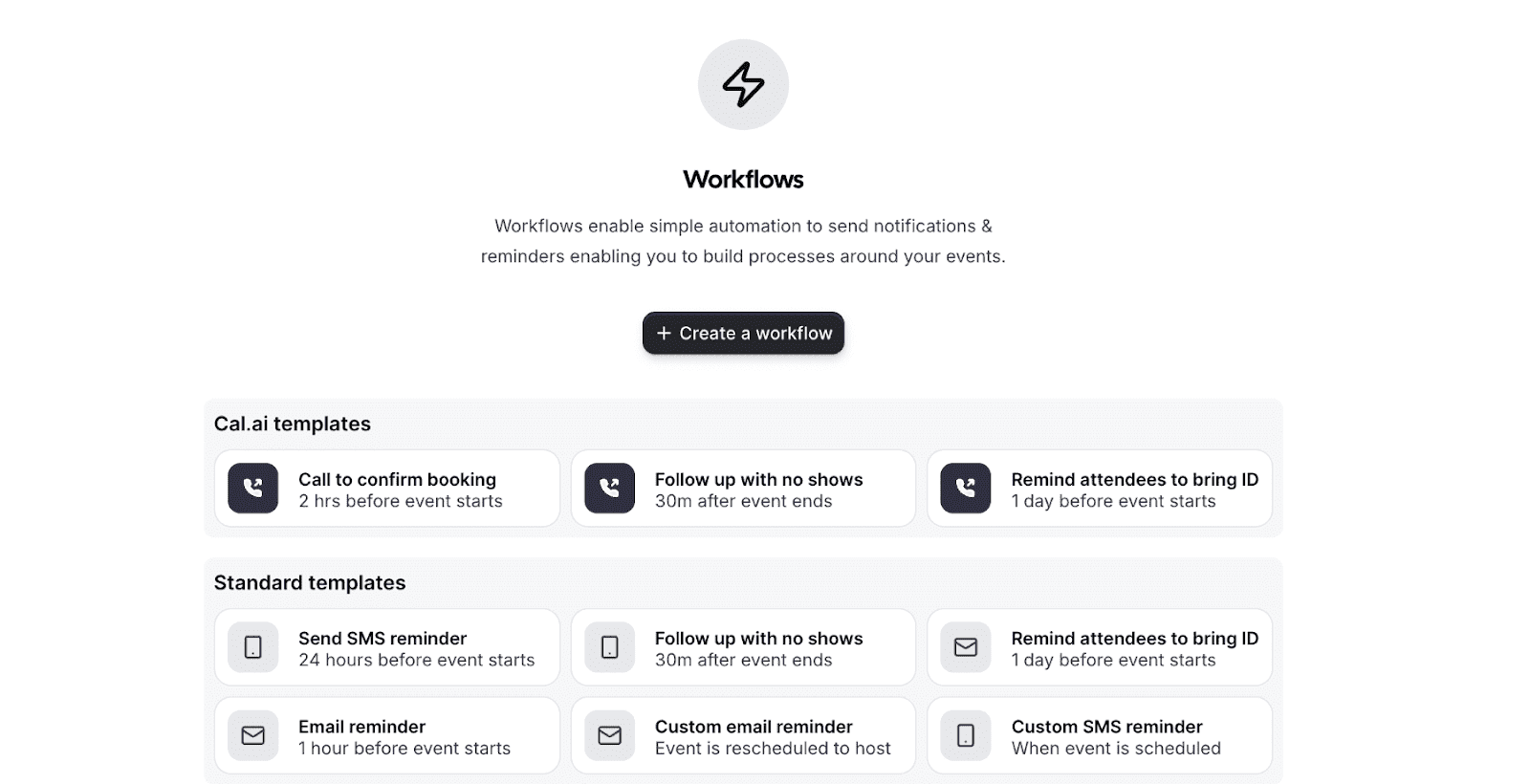
Automated booking workflow:
Clients see your available times in real-time
They pick a slot that works for them
The meeting books instantly in your calendar
Confirmation emails go out automatically
Reminders are sent before the meeting
Follow-ups trigger after the meeting
No manual work required. Zero back-and-forth emails. Just streamlined bookings.
Integrations That Actually Help Book Meetings
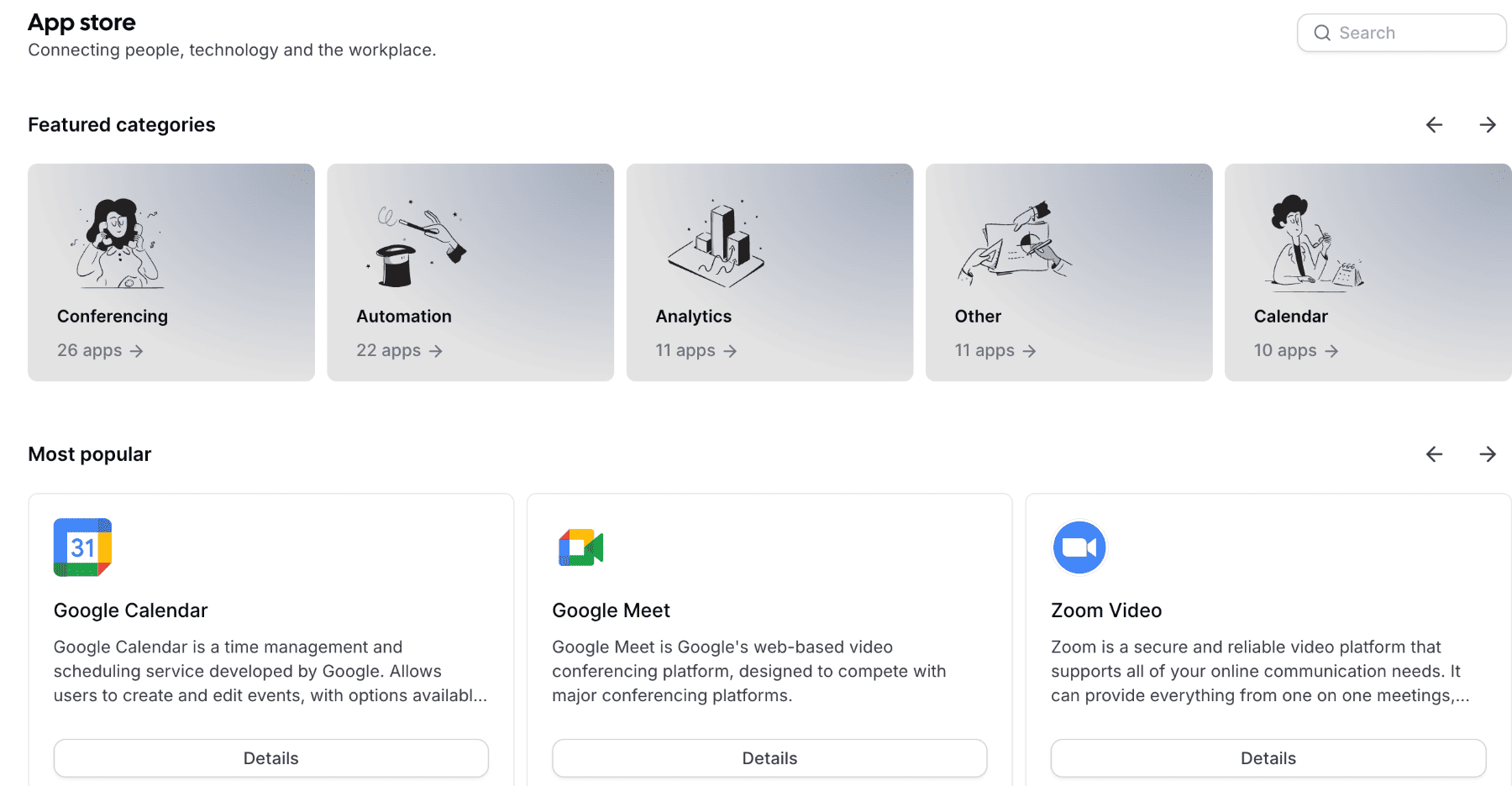
Cal.com integrations create complete booking experiences. You can easily integrate with your favorite tools via the Cal App store or use the API. Here’s what Cal.com’s integrations offer:
Video conferencing: Generate Zoom, Google Meet, or Teams links automatically when someone books
Payment processing: Collect payment through Stripe or PayPal before confirming the meeting
CRM sync: Update Salesforce or HubSpot records when meetings are booked, completed, or canceled
Workflow automation: Trigger actions in Zapier or Make based on booking events
Team coordination: Route bookings to the right team member based on form responses
These integrations don't just sync data. They automate your entire booking process.
Custom Email Domains: Professional Communication
If you’re on the Organizations plan and above, Cal.com lets you send all scheduling emails from your own email address, like you@yourcompany.com.
Why this matters:
Stronger Brand Trust: Your clients see emails from your actual company address, not a third-party sender. This builds credibility and reinforces your brand with every interaction.
Better Deliverability: When you send through your own email infrastructure, you control domain authentication (SPF, DKIM, DMARC). This improves inbox placement and reduces spam filtering.
Full Infrastructure Control: Already using SendGrid, Postmark, Amazon SES, or your own mail server? Plug Cal.com directly into your existing setup. No provider changes needed.
Compliance and Security: For teams with strict IT or compliance requirements, using your own SMTP server keeps email delivery aligned with internal policies.
Consistent Customer Experience: All communications (confirmations, reminders, reschedules, workflows) come from your domain. Every touchpoint feels unified and professional.
Buffer Times and Smart Scheduling
Set buffer times between meetings so you're never rushing from one call to the next. Define minimum notice periods so people can't book last-minute meetings when you need prep time. Create different availability schedules for different event types.
The platform handles the complexity automatically. Your calendar stays organized without manual blocks and adjustments.
Booking Pages Google Calendar Can't Create
Google Calendar requires you to share your entire schedule or manually send available times. Neither option is professional or efficient.
Cal.com creates dedicated booking pages for each meeting type. Share a clean link like cal.com/yourname/consultation. Clients see only the times you've designated as available for that specific meeting type.
Customize each booking page with:
Your branding and colors
Custom questions to qualify leads
Payment requirements
Location options (video call, phone, in-person)
Confirmation messages
These booking pages work 24/7. Clients book appointments while you sleep. Your calendar stays full without constant email management.
For more details on the differences between these 2 scheduling tools, check out our look at Google Calendar appointment scheduling vs Cal.
Need a scheduling tool that can handle your complex appointment-setting needs?
Cal.com gives you control over your calendar that no other tool can.
Frequently Asked Questions
Can Google Calendar be used as an online booking system?
Google Calendar provides basic booking functionality but lacks features that make it a true online booking system. Missing automation, payment collection, advanced customization, and professional features mean it works only for the simplest scheduling needs.
Is Cal.com better than Google Calendar for scheduling?
Yes. Cal.com offers superior automation, customization, team coordination, and professional features. It functions as a complete appointment scheduling app rather than a basic booking feature. For anyone scheduling regularly or professionally, Cal.com delivers significantly better value and capabilities.
Which scheduling app is best for a small business?
Cal.com is the best scheduling app for small businesses. It provides professional appointment booking software features, scales as you grow, handles team scheduling, collects payments, and offers customization that Google Calendar can't match—all at transparent pricing without forced software bundles.

Get started with Cal.com for free today!
Experience seamless scheduling and productivity with no hidden fees. Sign up in seconds and start simplifying your scheduling today, no credit card required!